
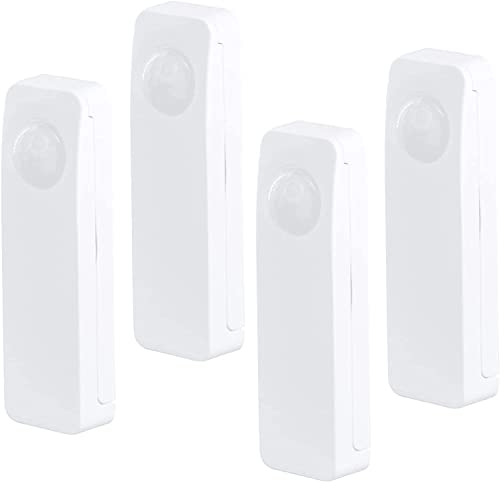
Zigbee-Bewegungsmelder von Third Reality. Kompatibel mit Home Assistant über Zigbee2MQTT, ZHA oder deCONZ.
Kompatibel mit Home Assistant, Zigbee2MQTT, ZHA und deCONZ / Phoscon.
- Hersteller
- Third Reality
- Modell
- 3RMS16BZ
- Modell-ID
- 3RMS16BZ
Wo kaufen
THIRDREALITY
THIRDREALITY Bewegungs-/Präsenzmelder 4er-Pack mit Zigbee, kompatibel mit Home Assistant, SmartThings, Aeotec, Hubitat und Echo Geräten mit integriertem Zigbee Hub
1 Angebot
| Shop | Angebot | Preis | Versand | Lieferzeit | Zum Shop |
|---|---|---|---|---|---|

|
Bestpreis THIRDREALITY Zigbee Bewegungsmelder 4er-Pack, Zigbee Hub erforderlich, haustierfreundlich, funktioniert mit Home Assistant, SmartThings, Aeotec, Hubitat oder Echo Geräten mit integriertem Zigbee Hub… Amazon-Bestseller-Rang: Nr. 526.654 | 99,23 € | Versand siehe Shop | Nur noch 11 auf Lager | Zum Angebot bei Amazon.de |
Anzeige * Affiliate-Link: Kaufst du über diesen Link, erhalten wir eine Provision. Für dich entstehen keine Mehrkosten.
Preise inkl. MwSt., zzgl. Versandkosten. Stand: Oktober 30, 2026, 9:05 p.m.. Preise und Verfügbarkeit können sich geändert haben.
Als Amazon-Partner verdiene ich an qualifizierten Verkäufen.
Kompatibilität
WLAN
| Integration | Status | Seit | Hinweise |
|---|---|---|---|
| Home Assistant | Läuft | — | über ZHA, Zigbee2MQTT und deCONZ / Phoscon |
Zigbee
| Integration | Status | Seit | Hinweise |
|---|---|---|---|
| Zigbee2MQTT | Läuft | — | — |
| ZHA ZHA | Läuft | — | — |
| dCZ deCONZ / Phoscon | Läuft | — | — |
Etwas falsch oder unvollständig? Erfahrung melden
Einrichtung & Anlernen
- Go to Settings → Devices & services → Add integration and search for Third Reality.
- Follow the config flow – devices on the same network are usually discovered automatically.
- Open Zigbee2MQTT → Settings → Permit join (or enable joining for a specific coordinator/router).
- Put Third Reality 3RMS16BZ Bewegungsmelder into pairing mode: den Reset laut Bedienungsanleitung durchführen (meist die Taste etwa 5 Sekunden halten).
- Watch the Zigbee2MQTT log – the device shows up with the model ID
3RMS16BZ. - Rename the device to a friendly name; entities are exposed to MQTT/Home Assistant automatically.
- In Home Assistant go to Settings → Devices & services → ZHA → Add device.
- Put Third Reality 3RMS16BZ Bewegungsmelder into pairing mode: den Reset laut Bedienungsanleitung durchführen (meist die Taste etwa 5 Sekunden halten).
- Wait for the interview to finish – the device appears as
3RMS16BZ. - If entities are missing, a ZHA quirk may be required (available from HA ).
- Open Phoscon → Devices → Add new device and choose the matching category.
- Put Third Reality 3RMS16BZ Bewegungsmelder into pairing mode: den Reset laut Bedienungsanleitung durchführen (meist die Taste etwa 5 Sekunden halten).
- The device is added as
3RMS16BZand exposed through the deCONZ REST API.
Alternativen
Dieselbe Aufgabe von anderen Herstellern – Geräte desselben Typs und Funkstandards, die ebenfalls mit Home Assistant laufen.
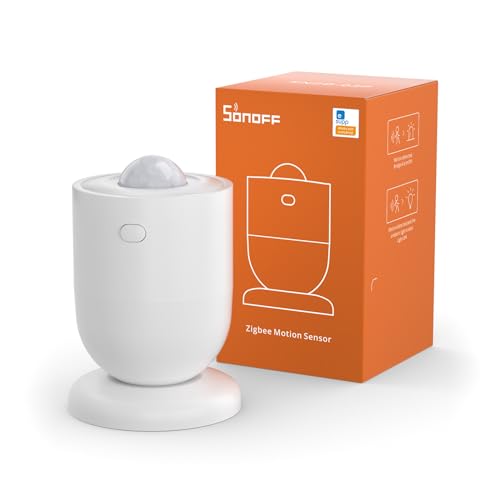
SONOFF SNZB-03P Bewegungsmelder
SNZB-03PPIR-Melder mit einstellbarer Sperrzeit ab 5 Sekunden – deutlich flotter als der Vorgänger.
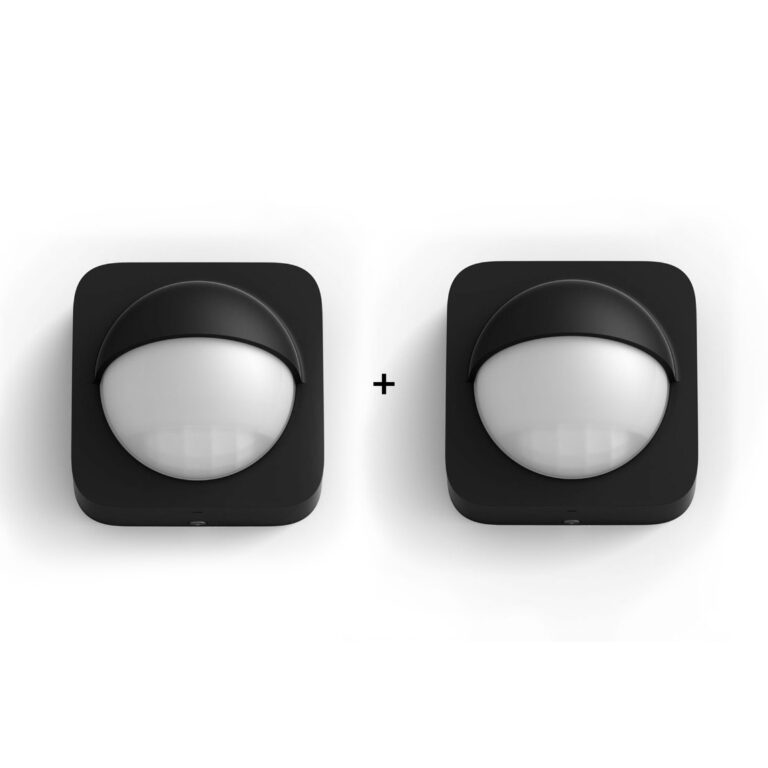
Philips SML004 Bewegungsmelder
SML004Zigbee-Bewegungsmelder von Philips. Kompatibel mit Home Assistant über Zigbee2MQTT, ZHA oder deCONZ. Läuft außerdem mit…
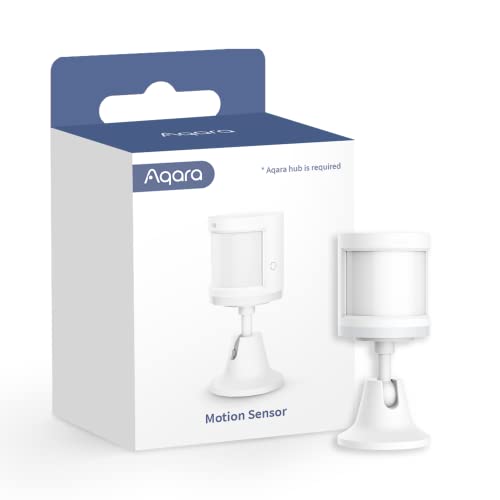
Aqara Bewegungsmelder
RTCGQ11LMPIR-Bewegungsmelder mit Helligkeitsmessung und werkseitig 60 Sekunden Sperrzeit.
Xiaomi RTCGQ01LM Bewegungsmelder
RTCGQ01LMZigbee-Bewegungsmelder von Xiaomi. Kompatibel mit Home Assistant über Zigbee2MQTT, deCONZ, Tasmota oder ZHA. Läuft außer…