
Some write-intensive programs on the Raspberry Pi cause the service life of the MicroSD card, which the Pi uses as a boot medium, to be reduced quickly. This makes sense, because SD cards were originally designed as a storage medium for digital cameras. Writing takes place with every image or video, but nowhere near as frequently as during 24/7 operation of a write-intensive application on the Raspberry Pi. Typical write-intensive applications are game servers, logging and databases.
Such an SD card is not well suited as storage for an operating system. It therefore makes sense to move the Raspberry Pi’s operating system to a USB SSD or USB HDD. To do this, we first need a USB SSD or HDD. On my Pi I use an Intenso SSD, which is perfectly adequate. If you want more storage, a larger SSD such as one of the Samsung models works well.
SSDs also wear out through write operations, but significantly more slowly than SD cards. If a program that writes a lot of data is running on the Raspberry Pi, you can also use a USB HDD instead.
A sufficiently powerful power supply is required to operate a USB medium on the Raspberry Pi.
Activate Raspberry Pi USB boot
There are various approaches that lead to the goal. First of all, we have to distinguish between the Raspberry Pi 3 and the Raspberry Pi 4. The fourth version of the single-board computer supports USB boot by default, whereas with the previous version we first have to activate USB boot.
Raspberry Pi 3: Activate USB boot
To activate USB boot on the Raspberry Pi 3, we need a Raspbian installation on an SD card (recommendations for the Raspberry Pi).
This command enables USB boot on the Raspberry Pi:
echo program_usb_boot_mode=1 | sudo tee -a /boot/config.txt
The Raspberry Pi must now be restarted once for the settings to be applied:
sudo rebootThen check whether the parameter has been set correctly:
vcgencmd otp_dump | grep 17:The output should be “17:3020000a”. The Raspberry Pi can then be shut down and the USB boot medium connected.
Activate Raspberry Pi 4 USB boot
With the Raspberry Pi 4, all models whose EEPROM boot loader is from September 3, 2020 or later are able to boot via USB by default. This is easy to check:
Connect the Raspberry Pi to a monitor without a boot medium and supply it with power. The EEPROM boot loader will appear briefly and display its version. If the displayed version is older, the EEPROM boot loader must be updated. For this we need the Raspberry Pi Imager and a microSD card.
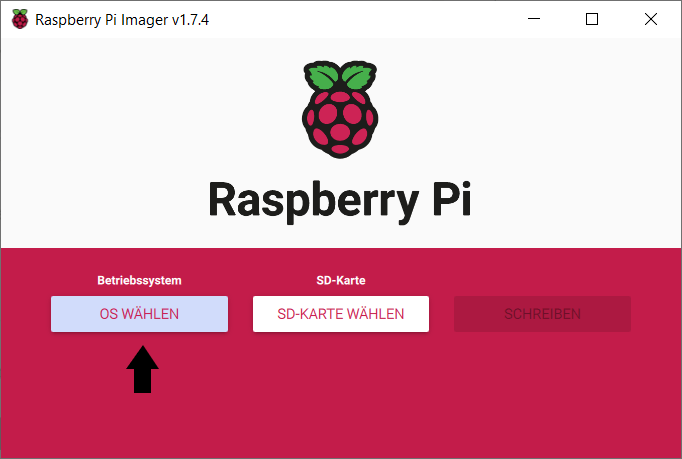
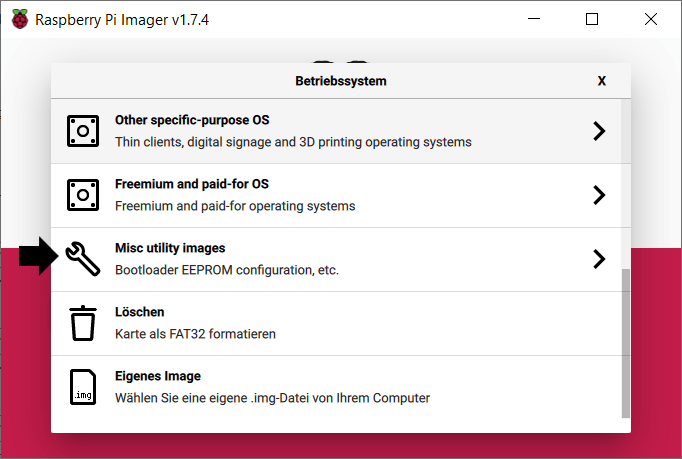
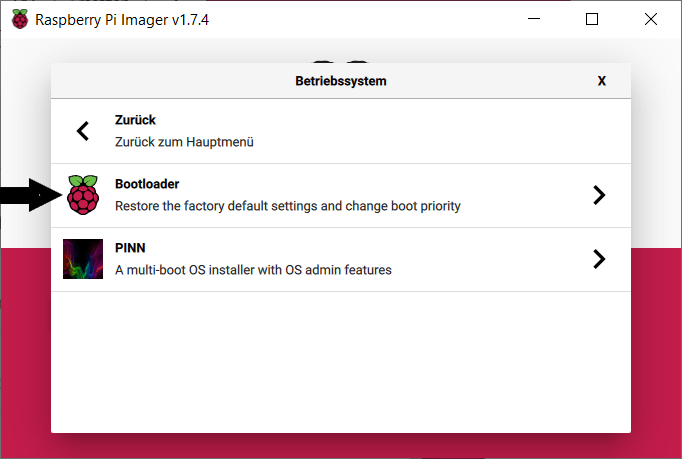
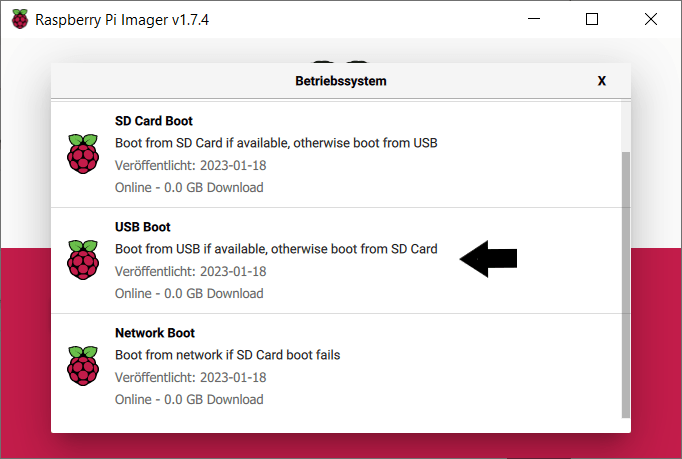
Now select the SD card and click “Write”.
Once the microSD card has been written, simply insert it back into the Raspberry Pi and reboot. The update is carried out automatically. After that, all you have to do is connect the USB boot medium and the Raspberry Pi will boot from it.