
Zurück zur Übersicht
Zigbee-Fernbedienung von AduroSmart. Kompatibel mit Home Assistant über Zigbee2MQTT, ZHA oder deCONZ.
Kompatible Systeme
ZHAdCZ
Kompatibel mit Home Assistant, Zigbee2MQTT, ZHA und deCONZ / Phoscon.
- Hersteller
- AduroSmart
- Modell
- 81825
- Modell-ID
- Adurolight_NCC
Kompatibilität
WLAN
| Integration | Status | Seit | Hinweise |
|---|---|---|---|
| Home Assistant | Läuft | — | über ZHA, Zigbee2MQTT und deCONZ / Phoscon |
Zigbee
| Integration | Status | Seit | Hinweise |
|---|---|---|---|
| Zigbee2MQTT | Läuft | — | — |
| ZHA ZHA | Läuft | — | — |
| dCZ deCONZ / Phoscon | Läuft | — | — |
Etwas falsch oder unvollständig? Erfahrung melden
Einrichtung & Anlernen
- Go to Settings → Devices & services → Add integration and search for AduroSmart.
- Follow the config flow – devices on the same network are usually discovered automatically.
- Open Zigbee2MQTT → Settings → Permit join (or enable joining for a specific coordinator/router).
- Put AduroSmart 81825 Fernbedienung into pairing mode: den Reset laut Bedienungsanleitung durchführen (meist die Taste etwa 5 Sekunden halten).
- Watch the Zigbee2MQTT log – the device shows up with the model ID
Adurolight_NCC. - Rename the device to a friendly name; entities are exposed to MQTT/Home Assistant automatically.
- In Home Assistant go to Settings → Devices & services → ZHA → Add device.
- Put AduroSmart 81825 Fernbedienung into pairing mode: den Reset laut Bedienungsanleitung durchführen (meist die Taste etwa 5 Sekunden halten).
- Wait for the interview to finish – the device appears as
Adurolight_NCC. - If entities are missing, a ZHA quirk may be required (available from HA ).
- Open Phoscon → Devices → Add new device and choose the matching category.
- Put AduroSmart 81825 Fernbedienung into pairing mode: den Reset laut Bedienungsanleitung durchführen (meist die Taste etwa 5 Sekunden halten).
- The device is added as
Adurolight_NCCand exposed through the deCONZ REST API.
Alternativen
Dieselbe Aufgabe von anderen Herstellern – Geräte desselben Typs und Funkstandards, die ebenfalls mit Home Assistant laufen.
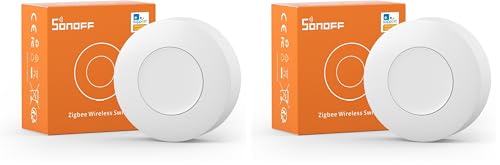
Sonoff SNZB-01P Fernbedienung
SNZB-01PZigbee-Fernbedienung von Sonoff. Kompatibel mit Home Assistant über Zigbee2MQTT oder ZHA. Läuft außerdem mit Domoticz.
Läuft mit
ZHADOM
ab 12,20 €
2 Shops
IKEA STYRBAR Fernbedienung
E2001/E2002Vier-Tasten-Fernbedienung, die sich direkt an Lampen binden lässt.
Läuft mit
ZHAHMYdCZ
Batterie
Iluminize 511.557 Fernbedienung
511.557Zigbee-Fernbedienung von Iluminize. Kompatibel mit Home Assistant über Zigbee2MQTT.
Läuft mit
Iluminize 511.541 Fernbedienung
511.541Zigbee-Fernbedienung von Iluminize. Kompatibel mit Home Assistant über Zigbee2MQTT oder Tasmota.
Läuft mit
Lädt …