
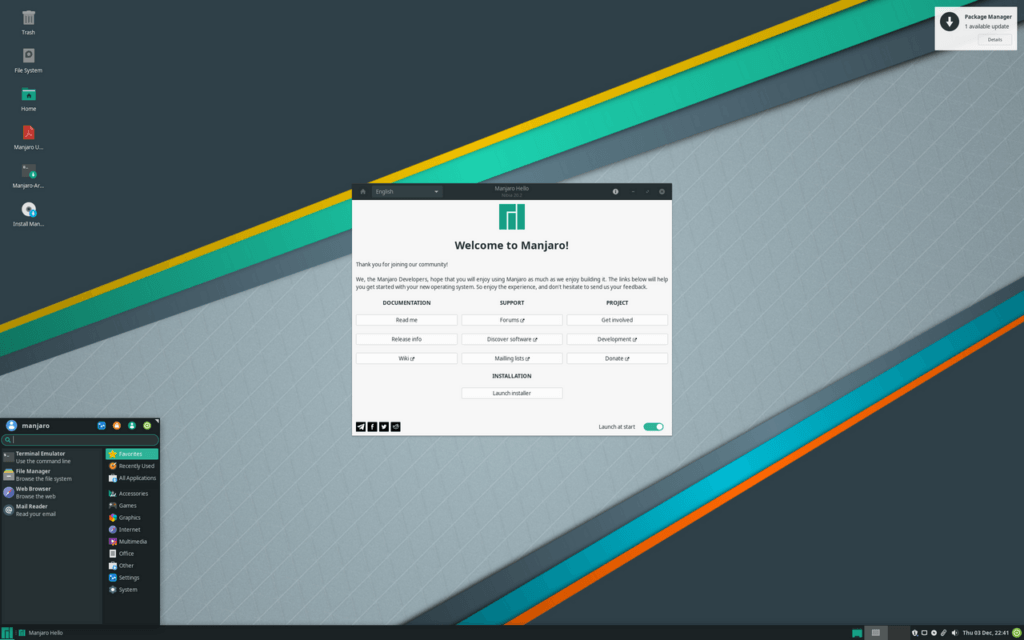
In this guide, you will learn how to cleanly install and configure the proprietary NVIDIA graphics driver on Manjaro Linux. This tutorial is aimed at users experiencing screen flickering or encountering errors with the nvidia-settings utility. The process takes about 10 to 15 minutes.
Prerequisites
- Operating system: Manjaro Linux (64-bit) with a running desktop environment (e.g., Xfce, KDE Plasma, or GNOME).
- Hardware: A computer with an installed NVIDIA graphics card.
- Permissions: A user account with
sudoprivileges (administrative access for system management). - Preparation: Save all open documents, as a system reboot is required after the driver installation.
Step 1: Identify Current Graphics Hardware and Driver
Before making any changes, you should check which graphics card is installed and which driver is currently active on your system:
inxi -GxxIn the output, under Device-1, you will see your graphics card, and after driver:, the currently loaded module. If your system is using the open-source nouveau driver, utilities such as nvidia-settings will not work properly yet, as they require the proprietary NVIDIA driver.
Step 2: List Available Driver Profiles
On Manjaro, hardware drivers can be managed using the mhwd utility:
mhwd -lThe terminal will display an overview of available configurations. Look for entries like video-nvidia or video-nvidia-470xx that show false in the FREEDRIVER column (indicating proprietary drivers).
Step 3: Automatically Install the Proprietary Driver
To automatically install the appropriate proprietary driver, run the following command:
sudo mhwd -a pci nonfree 0300This command automatically identifies a suitable proprietary NVIDIA driver and installs it on your system.
Step 4: Reboot the System
Once the installation finishes, reboot your system:
sudo rebootWait until your computer has fully restarted and the login screen appears again.
Step 5: Launch the NVIDIA Settings Control Panel
Once the proprietary driver is active, you can launch the configuration tool:
nvidia-settingsIf the command is not found, you can install the package via the package manager (sudo pacman -S nvidia-settings).
Verification
To verify which driver configurations are currently installed, query the status using mhwd:
mhwd -liExpected output:
Installed PCI configs:
--------------------------------------------------------------------------------
                  NAME               VERSION          FREEDRIVER           TYPE
--------------------------------------------------------------------------------
video-nvidia 2025.01.13 false PCIYou can also run inxi -Gxx again to confirm that nvidia is now listed under driver:.
Troubleshooting
- Error message:
ERROR: NVIDIA driver is not loaded
Cause: This message occurs when the proprietary NVIDIA driver has not yet been loaded and the system is still running on the open-sourcenouveaudriver.
Solution: Ensure that the proprietary driver was installed viamhwd, and reboot the system. - Error message:
error: XDG_RUNTIME_DIR is invalid or not set in the environment
Cause: This error is related to running the command withsudoor having an unset/invalidXDG_RUNTIME_DIRenvironment variable.
Solution: Launch graphical applications such asnvidia-settingsas a regular user withoutsudo, and ensure the environment variable is properly set.
Conclusion
Your graphics card is now using the NVIDIA driver. You can now launch and adjust display preferences via nvidia-settings whenever needed.
Sources: Forum: Manjaro Linux Forum, linux-de.com, forum.manjaro.org